FareSight · Android setup
Your button. Your timing.
Quick Analyze requires Android 11 or later and a current FareSight build. Start in onboarding, or open Settings in FareSight and find Quick Analyze to set up, test or review it.
1. Review optional accessibility access.
Choose Set up Quick Analyze in FareSight. Read the separate AccessibilityService disclosure before continuing to Android settings. You can agree or choose Not Now.
The service provides the floating FareSight button and captures the visible screen when you tap it. FareSight analyzes that capture on your device. It does not use the service to accept or decline rides, press buttons in driver apps, or change device settings.
Accessibility access is optional for FareSight, but required for Android Quick Analyze. If you do not enable it, you can still share or import saved screenshots. Read the Privacy Policy for separate analytics, reporting and purchase data flows.
2. Enable and position your button.
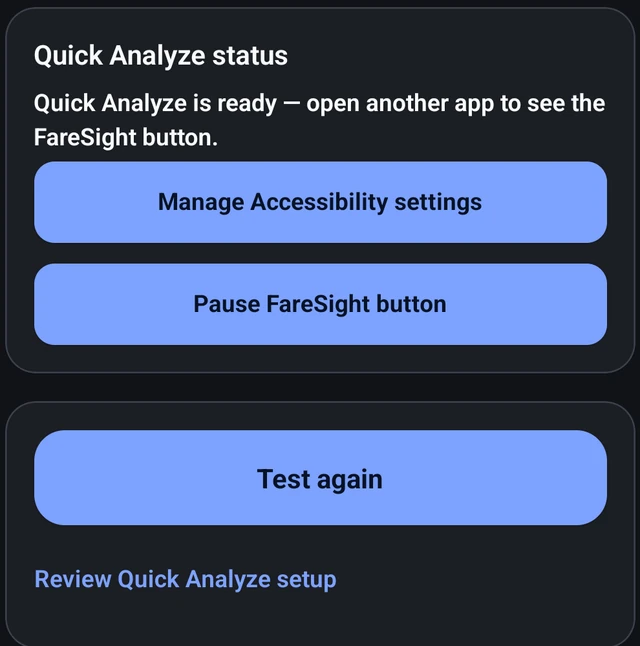
After accepting the disclosure, choose FareSight Quick Analyze in Android Accessibility settings and turn it on. Return to FareSight and check Quick Analyze status. Android menu names can vary by manufacturer and version.
The button is hidden in FareSight and Settings. Open another app, Photos, or your Home screen to check that it appears. Drag the floating FareSight button to a comfortable spot. With an offer visible, tap it when you want to analyze.
Use Pause FareSight button in FareSight to temporarily hide it, and Resume FareSight button when you are ready. Use Manage Accessibility settings to review or disable system access.
3. Choose speech and check your result.
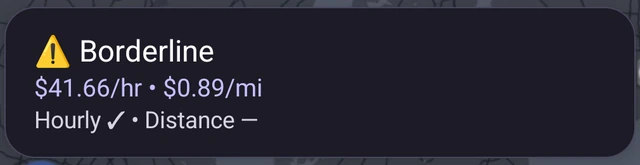
Quick Analyze shows an on-screen result. Spoken feedback is optional: choose no speech, verdict only, or verdict plus available rates in the setup preferences. You can tap the result card to dismiss it early.
With speech enabled, the result card disappears after speech finishes. Without speech, it disappears after about ten seconds. A partial result may show only the rates that can be calculated from the captured offer.
4. Test it on an offer or screenshot.
- Choose Test Quick Analyze or Test again in FareSight.
- Open an offer or screenshot outside FareSight. Keep its payout and available distance/time details visible.
- Tap the floating FareSight button. Every analysis starts with your tap.
- Review the on-screen result and optional speech. Return to FareSight to check the test outcome. Testing is optional and normal analysis limits apply.
Use the in-app onboarding sample if you want to explore a sample result first; that built-in sample does not use your free allowance. Always verify estimates in the original app. Do not use FareSight while driving.
Watch the real Android Quick Analyze demo →
If the button is missing or nothing happens.
- First leave FareSight and Settings; the button is intentionally hidden there.
- Check that FareSight Quick Analyze is enabled in Android Accessibility settings and is not paused in FareSight.
- If setup asks for an updated disclosure, review it in FareSight. System access alone does not complete that in-app step.
- If the status says Android is still starting Quick Analyze, reopen accessibility settings and confirm FareSight is on, then check again.
- If Android blocks access or a device-specific message is unclear, use the current store build and contact support with the exact message rather than guessing which system protection to change.
- If tapping produces a partial result, check the screenshot details and use the incomplete-result checklist. Protected or unreadable screens may prevent a usable capture.
You can disable the service at any time in Android settings and continue with saved screenshots. For further help, contact FareSight support.
Your goals. Your verdict.
Ready to try FareSight?
5 free quick analyses each day.