
FareSight · iPhone setup
One Shortcut. Your choice of trigger.
Quick Analyze requires iOS 16 or later and a current FareSight build. Start in guided onboarding, or open Settings in FareSight and find the Quick Analyze section to set up or review it.
1. Add the FareSight Shortcut.
In FareSight’s Quick Analyze walkthrough, choose Add FareSight Quick Analyze. Follow the system Shortcuts flow to add it, then return to FareSight and select I’ve added it. Use the link supplied by the app rather than an unofficial shared Shortcut.
If the add button is unavailable, check that you have the current App Store version. If FareSight says the verified link is not enabled for the build, contact support; reinstalling an unrelated Shortcut is not a substitute.
2. Choose how you want to run it.
Pick one supported method. Availability and labels can vary by iPhone and iOS version. You can review these options in FareSight’s walkthrough.
AssistiveTouch: a movable on-screen button
Open iPhone Settings → Accessibility → Touch → AssistiveTouch and turn it on. Choose Single-Tap, Double-Tap or Long Press, then select FareSight Quick Analyze if it appears in the action list. If it is absent, try another supported trigger.
Back Tap
Open Settings → Accessibility → Touch → Back Tap. Choose Double Tap or Triple Tap, then FareSight Quick Analyze where available.
Action Button on supported iPhones
Open Settings → Action Button → Shortcut → Choose a Shortcut, then select FareSight Quick Analyze. Press and hold the Action Button to run it. This option requires a compatible iPhone.
Siri
Activate Siri and say “FareSight Quick Analyze.” Check that the added Shortcut has that name if Siri does not find it.
These are iPhone system triggers for your Shortcut. They are different from the FareSight-managed floating button on Android.
3. Choose result banners, speech, or both.
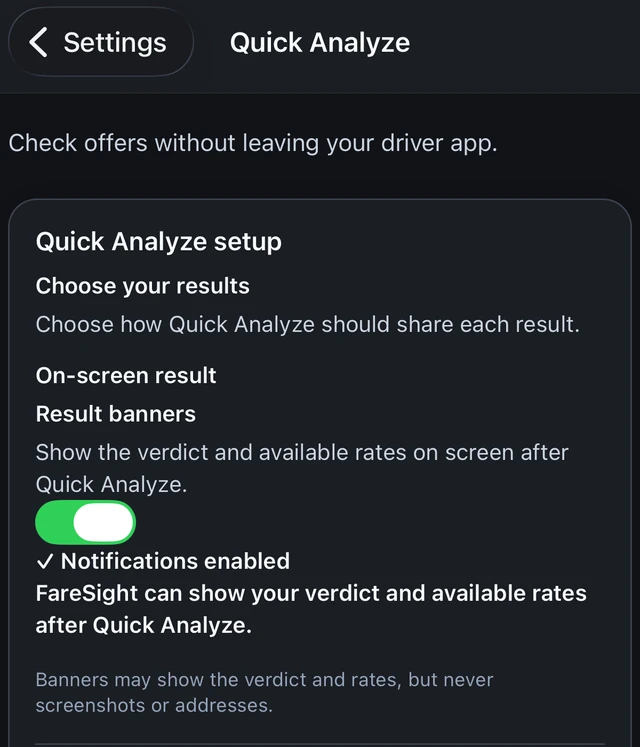
In Quick Analyze setup, use Enable result banners and review the iOS notification request if you want an on-screen result. If notifications were denied, use Open iOS Settings from the walkthrough to review FareSight’s notification settings.
Spoken feedback can announce only the verdict or include the available rates. If banners are off, choose speech before continuing with setup. You decide which feedback suits you.
4. Try the trigger outside FareSight.
- Choose Test Quick Analyze in the walkthrough. Testing is optional, but useful before your first real offer.
- Open an offer or screenshot outside FareSight and keep it visible.
- Run your chosen trigger. On first use, iOS may ask whether the Shortcut can share an image with FareSight. Review that request; permission to share the image is separate from permission to show notifications.
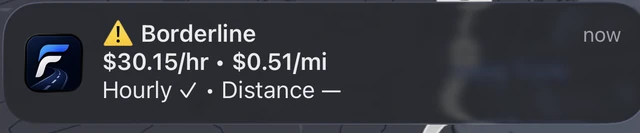
- Check the banner or spoken result, then return to FareSight to check the test outcome. Normal analysis limits apply.
Watch the real iPhone Quick Analyze demo →
If the Shortcut runs but you get no result.
- Confirm the Shortcut was added and is selected for your chosen trigger.
- Review any image-sharing prompt from Shortcuts.
- If the result is not visible, check Result banners and iOS notification settings. Check the speech option and device audio settings if you expected spoken feedback.
- Keep a supported offer clearly visible while running the trigger. A locked, protected or unreadable screen may not provide a usable capture.
- Return to Quick Analyze setup and use Test again. Import or share the screenshot manually if you need another analysis method.
A missing time estimate can produce a partial result rather than a complete verdict. See incomplete results or contact support if setup still fails.
Your goals. Your verdict.
Ready to try FareSight?
5 free quick analyses each day.